
Microsoft Outlook: Introduction
Microsoft Outlook Training Series | Level 1
Course Details
Duration: 1 day (9 am – 4 pm)
Microsoft® Outlook® Versions (New Desktop): 2019 | 2021 | 365 (Windows)
Delivery Methods (Instructor-led): In-person (Live classroom) | Online in virtual classroom
Course Dates (New Desktop Version): March 19, 2026 (Online in virtual classroom or In-person) | View schedule 
Course Fee: $295 CAD per person + HST (Virtual classroom), $325 CAD per person + HST (Bring your own device for in-person courses) or $345 CAD per person + HST (Avantix Learning provides device for in-person courses)*
Timing: Public scheduled courses run from 9:00 am to 4:00 pm (Eastern Time).
Virtual classroom courses: Our instructor-led virtual classroom courses are delivered in a virtual classroom environment. Students will be sent a virtual classroom invitation prior to the course.
In-person classroom courses: Our instructor-led, live classroom (in-person) courses are held in downtown Toronto at 18 King Street East, Suite 1400, Toronto, Ontario, Canada. Some courses are also held at an alternate downtown Toronto location.
Custom training: This course may be delivered at your site or ours as an instructor-led or virtual classroom solution. Contact us at info@avantixlearning.ca for more information including savings for custom group training.
Next course in this series: Microsoft Outlook: Intermediate / Advanced
Some public courses and / or formats and may be subject to a minimum enrollment requirement.

Course Overview
During this hands-on course, learn to use Microsoft Outlook to manage email, contacts, appointments/events, and tasks. Students will set preferences for email, events and tasks and use different strategies to send and manage emails, create events and create and assign tasks. Different views will be used as well as keyboard shortcuts. At the end of the course, students will generate a mail merge from specific Outlook contacts.
Prerequisite: Students should have basic keyboarding and computer skills.
INCLUDED IN THIS COURSE
- Comprehensive course manual
- Keyboard shortcuts quick reference
- Sample and exercise files
- Refreshments (for classes conducted in Avantix Learning classrooms)
- Certificate of completion
- Follow-up email support
Course Topics
Microsoft Outlook Environment
- Working with the Ribbon and the Quick Access Toolbar
- Navigating quickly in Outlook
- Moving quickly between different views
Managing Email
- Setting options
- Setting default fonts and colors
- Setting up signatures for emails
- Creating and sending emails
- Selecting emails
- Deleting emails
- Creating folders and filing emails
- Setting a vacation message
Managing Contacts
- Adding, editing and deleting contacts
- Organizing contacts into categories
Managing Appointments and Meetings Using the Calendar
- Setting options for calendars
- Adding meetings and appointments to a calendar
- Creating a recurring meeting or appointment
- Specifying colors for different types of events
- Changing the calendar layout, view and other defaults
- Setting reminders for events
- Organizing a meeting
- Accepting or rejecting invitations to a meeting
Creating and Managing Tasks
- Creating task lists to manage to do lists
- Setting reminders for tasks
- Attaching an item to a task
- Assigning a task
Writing Notes
- Creating notes in Outlook
- Assigning categories to notes
Sending Emails to Groups
- Sending emails to Outlook contact groups
Getting Started with Automation
- Getting started with Quick Steps
Our instructor-led courses are delivered in virtual classroom format or at our downtown Toronto location at 18 King Street East, Suite 1400, Toronto, Ontario, Canada (some in-person classroom courses may also be delivered at an alternate downtown Toronto location). Contact us at info@avantixlearning.ca if you'd like to arrange custom instructor-led virtual classroom or onsite training on a date that's convenient for you.
Copyright 2026 Avantix® Learning

Custom training (Onsite or Online in Virtual Classroom)
Register for a public course or contact us at info@avantixlearning.ca for more information about any of our courses or to discuss custom training options (virtual classroom or in-person in live classroom).
Related courses
Microsoft Outlook: Intermediate / Advanced
Microsoft Word: Intermediate / Advanced
Microsoft Excel: Intermediate / Advanced
You may like
How to Print a Word Document Without Comments
If you or another user have added comments in a Word document, you may want to print the document without comments. By default, when you print a Word document, comments are printed as well. There are a few ways you can print a Word document without printing the comments – hide the comments or change print settings. If you use either of these strategies, the comments are not deleted.
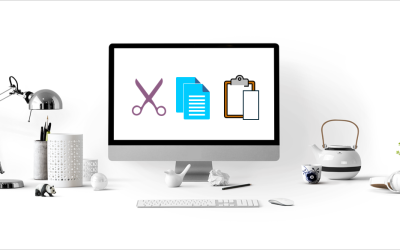
How to Cut, Copy and Paste Text in Word (5 Ways with Shortcuts)
In this guide, we'll cover 5 ways to cut, copy and paste text in Microsoft Word. A common method is to use keyboard shortcuts but you can also use the Ribbon, the context menu and a few hidden tools as well. After you paste your text, you can choose paste options such as Keep Text Only.

How to Insert or Type an Upside Down Exclamation Mark in Word (5 Ways to Insert ¡ with Shortcuts)
This guide covers five easy ways to insert or type the upside down exclamation mark (¡) in Microsoft Word including shortcuts, Alt codes and custom key combinations. The upside down exclamation mark or inverted exclamation mark is used in the Spanish language at the beginning of exclamatory sentences and helps readers understand tone before completing the sentence.
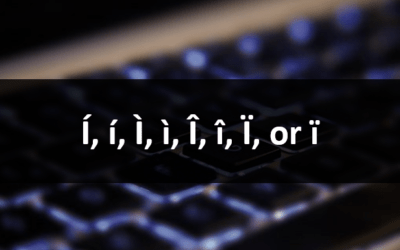
How to Insert or Type I with an Accent Mark in Word (Í, í, Ì, ì, Î, î, Ï, or ï)
You can insert or type i with an accent mark in Word using built-in tools or keyboard shortcuts (including Alt code shortcuts). The letter i can be inserted with an accent in both upper or lower case. The following are common accented characters that you can insert or type in Word in upper or lower case: grave (Ì or ì), acute (Í or í), circumflex (Î or î) and umlaut (Ï or ï).
You may also like
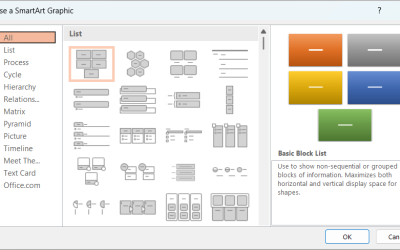
How to Insert SmartArt in PowerPoint (5 Ways)
SmartArt graphics are pre-defined graphics that are treated as one object and follow the document theme, font theme and color theme unless a user manually changes the font and font and shape colors. SmartArt graphics are also "smart" in several ways such as resizing other components if a new shape is added and changing font size. You can insert SmartArt in several ways in PowerPoint. SmartArt objects are typically inserted on PowerPoint slides in Normal View.
How to Print a Word Document Without Comments
If you or another user have added comments in a Word document, you may want to print the document without comments. By default, when you print a Word document, comments are printed as well. There are a few ways you can print a Word document without printing the comments – hide the comments or change print settings. If you use either of these strategies, the comments are not deleted.
How to Cut, Copy and Paste Text in Word (5 Ways with Shortcuts)
In this guide, we'll cover 5 ways to cut, copy and paste text in Microsoft Word. A common method is to use keyboard shortcuts but you can also use the Ribbon, the context menu and a few hidden tools as well. After you paste your text, you can choose paste options such as Keep Text Only.
Image credit(s) / application screenshot(s): Microsoft
Microsoft, the Microsoft logo, Microsoft Office and related Microsoft applications and logos are registered trademarks of Microsoft Corporation in Canada, US and other countries. All other trademarks are the property of the registered owners.
Avantix Learning |18 King Street East, Suite 1400, Toronto, Ontario, Canada M5C 1C4 | Contact us at info@avantixlearning.ca