
Sandra Linton
Senior Training Specialist | Instructional Designer
Sandra Linton is a career training specialist who has taught thousands of students from large corporations, government and educational organizations, and small and medium-sized business clients. As an instructional designer, she has also designed and delivered more than 100 software training courses ranging from 1/2 day to multi-day training sessions.
Sandra has designed courses from the introduction to advanced level for the Microsoft suite as well as several courses for the Adobe suite of products. Recently, she has also designed and delivered courses on information and communications accessibility including Designing Accessible Word Documents and Designing and Delivering Accessible PowerPoint Presentations.
Over the past 25 years, Sandra has worked with numerous training organizations in the Toronto area and is currently designing and leading Avantix Learning training courses on Microsoft Excel, Access, Project, PowerPoint, Word, FileMaker, Power BI and Adobe FrameMaker.
As a lifelong learning advocate, she has also been a member and facilitator with the Academy for Lifelong Learning at the University of Toronto for more than 10 years and has designed and led courses for both George Brown College and Seneca College.
Sandra is an active member in numerous Toronto technology, business and education organizations and is a regular contributor to the Avantix Learning blog.
You may like
How to Insert SmartArt in PowerPoint (5 Ways)
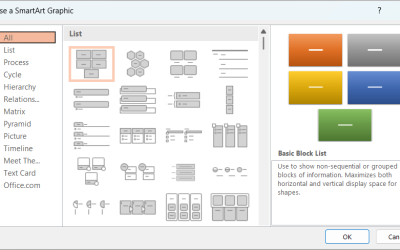
SmartArt graphics are pre-defined graphics that are treated as one object and follow the document theme, font theme and color theme unless a user manually changes the font and font and shape colors. SmartArt graphics are also "smart" in several ways such as resizing other components if a new shape is added and changing font size. You can insert SmartArt in several ways in PowerPoint. SmartArt objects are typically inserted on PowerPoint slides in Normal View.
How to Print a Word Document Without Comments
If you or another user have added comments in a Word document, you may want to print the document without comments. By default, when you print a Word document, comments are printed as well. There are a few ways you can print a Word document without printing the comments – hide the comments or change print settings. If you use either of these strategies, the comments are not deleted.

How to Cut, Copy and Paste Text in Word (5 Ways with Shortcuts)
In this guide, we'll cover 5 ways to cut, copy and paste text in Microsoft Word. A common method is to use keyboard shortcuts but you can also use the Ribbon, the context menu and a few hidden tools as well. After you paste your text, you can choose paste options such as Keep Text Only.